
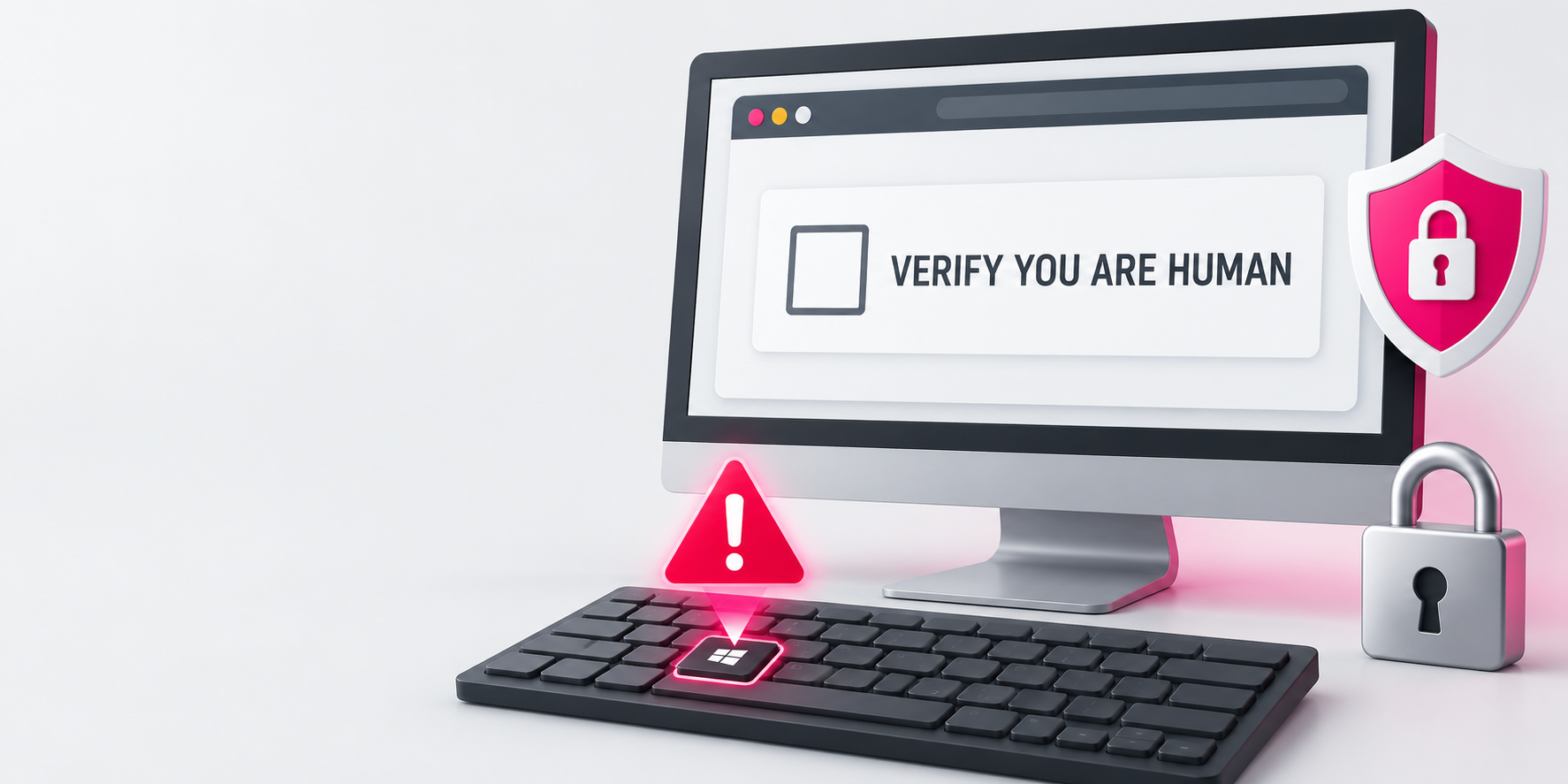
Fake CAPTCHA scams: why a “prove you’re human” box could be a warning sign
We have all seen CAPTCHA checks online. Usually, they ask you to tick a box, identify a few traffic lights or complete a quick puzzle before continuing to a website.
A newer scam takes advantage of that familiarity. Instead of asking you to click something in the browser, a fake CAPTCHA page tells you to use keyboard shortcuts, open a Windows tool or paste and run a command. That is not a normal security check. It is an attempt to install malware.
The Identity Theft Resource Center has warned that these convincing pages can trick Windows users into running an information-stealing programme. Once installed, it may look for saved browser passwords, email logins, account cookies and other sensitive information. Read the original alert from the Identity Theft Resource Center.
What makes this scam different?
A real CAPTCHA works within the website itself. You might tick a box, choose images or complete a small challenge.
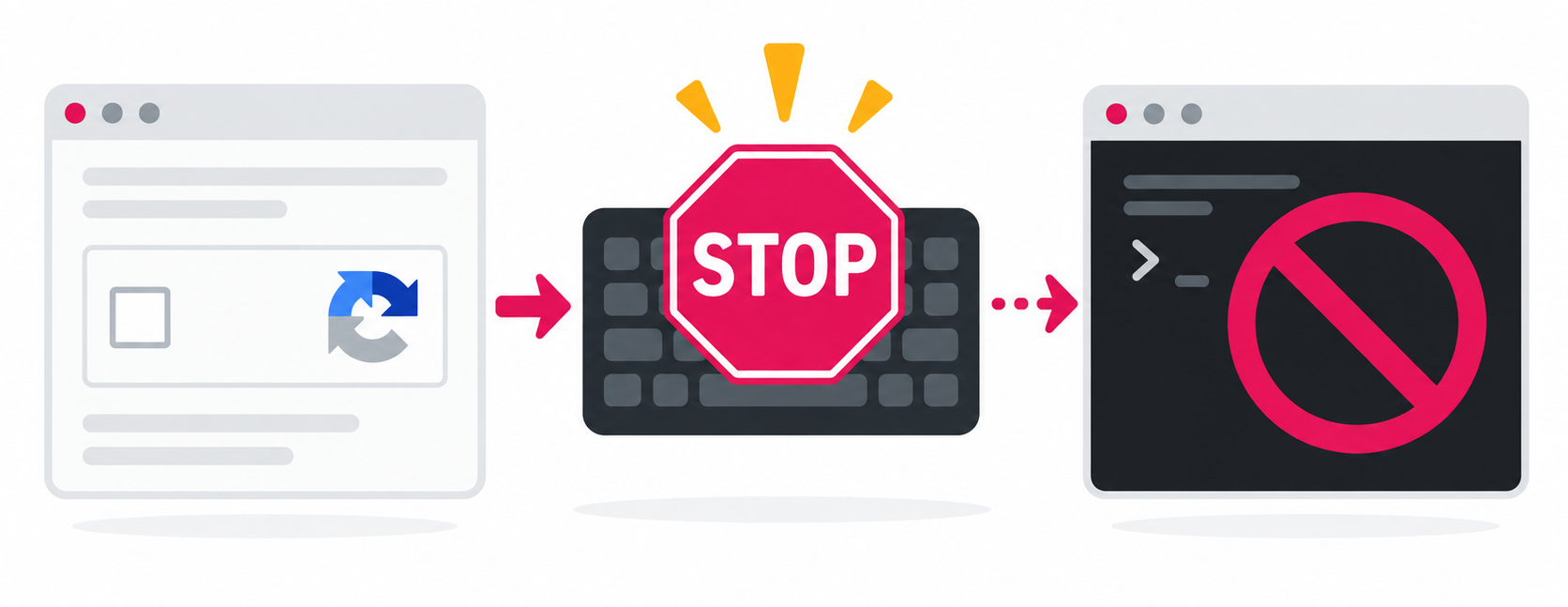
A fake CAPTCHA may claim there is a problem and then give you a set of “verification” steps. It could ask you to press keys on your keyboard, open the Windows Run box, paste text or press Enter.
That is the giveaway. A legitimate website does not need you to run a command on your computer to prove you are human.
What to do if you see one
Close the browser tab or window straight away. Do not follow the instructions, even if the page looks familiar or appears after clicking a link from a search result, email or social media post.
If you were trying to reach a trusted website, type its address into your browser yourself rather than using the link or on-screen prompt.
It is also worth keeping your browser, Windows and security software up to date. These updates help reduce the risk from known security issues, although a convincing scam can still catch people out if it persuades them to run something manually.
If you have already followed the instructions
Act promptly, but do not panic.
Disconnect the computer from the internet to limit any further communication with an attacker. From a different, trusted device, change passwords for important accounts, starting with email, banking and business systems. If you reuse passwords, change any other accounts that use the same or a similar one.
Run a full scan using trusted security software and keep an eye on bank statements, email forwarding rules and unexpected login alerts. If the affected device is used for your business, let whoever looks after your IT or website support know as soon as possible.
A few sensible safeguards
Use a different, strong password for every account and store them in a reputable password manager. Turn on multi-factor authentication wherever it is available, preferably using an authenticator app or passkey.
Most importantly, trust the warning sign: a CAPTCHA should never ask you to leave the browser and run a command. If it does, close it.
For help keeping a small business website secure and maintained, O’Brien Media’s website support team can help with regular updates and practical advice.