
Your email server will be in the form “serverX.obrienmediabusiness.co.uk” where the X is the server number your website or email service is hosted on.
In this article
1. Open Mail
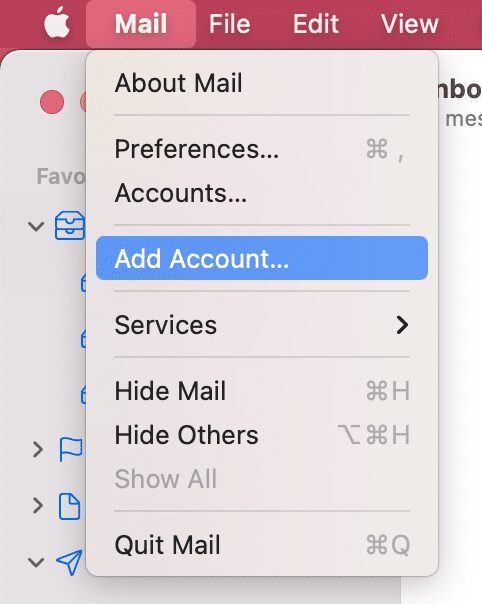
2. Click Mail in the top menu bar and select “Add Account”
3. Select “Other Mail Account”

4. Type in your name, full email address and password and click “Sign In”

5. This will then bring up an additional menu (don’t worry that it says “Unable to verify”):
- Leave username as “Automatic”
- Select IMAP
- Outgoing mail server (SMTP): mail.obrienmedia.co.uk
- Incoming mail server: mail.obrienmedia.co.uk

7. Make sure “Mail” is ticked and uncheck “Notes” and “Done”

8. The account should now be added!
A note on O’Brien Media server settings
Your email server (incoming and outgoing) will be mail.obrienmedia.co.uk
Your username will be your email address, in full, and your password will be provided when your email account was created. Once saved, we cannot view passwords, we can however reset them and provide you with a new password.
If you want to collect your email on more than one device, or you want to access your email via Webmail and using your phone or laptop, choose IMAP at the type for your new account when setting up your device.
Was this article helpful?
If it didn’t answer your question, contact our support team or call 01793 239239 and we’ll be happy to help in any way we can.