
Client Connect’s QR Code Tracking tool lets you create downloadable QR codes, change where they lead after they have been printed and measure how often they are scanned.
This makes them useful for printed materials such as:
- Posters and flyers
- Business cards
- Product packaging
- Brochures and leaflets
- Exhibition stands
- Signs and window displays
- Printed menus or price lists
Each QR code uses a short qr-link.uk address. When somebody scans the code, they are quickly redirected to the destination page you have chosen.
Because the QR code points to the short link rather than directly to your website page, you can change its destination later without replacing or reprinting the code.
Opening the QR Code Tracking Tool
To access QR Code Tracking:
- Log in to Client Connect.
- Open Tools from the main navigation.
- Select QR Code Tracking.
If QR Code Tracking is not currently available on your account, please contact the O’Brien Media team or open a support case in Client Connect.
Creating a New QR Code
From the QR Code Tracking page, select New QR link.
You will be asked to complete the following fields.
Title
Enter a name that will help you recognise the QR code later.
For example:
- Reception window poster
- Summer offer leaflet
- August networking event
- Product packaging
- Business card QR code
The title is only used inside Client Connect and is not shown to people scanning the code.
Destination URL
Enter the full web address that visitors should be sent to when they scan the code.
For example:
https://www.example.co.uk/summer-offer/
The destination URL is the only required field.
The destination could be:
- Your homepage
- A service or product page
- A contact form
- An online booking page
- An event page
- A special offer or campaign landing page
- A downloadable document
- A social media profile
Check that the destination page is published and works well on mobile devices before creating the code.
Campaign
You can optionally assign the QR code to a campaign.
Campaigns are useful when you are creating several QR codes for the same marketing activity. They allow the codes to share a consistent set of tracking information.
For example, a campaign called Summer 2026 Promotion might contain separate QR codes for:
- A shop-window poster
- A leaflet
- An exhibition banner
- A printed advert
Each code can still be measured separately.
UTM Tracking Fields
UTM fields add tracking information to the destination address. This helps services such as Google Analytics, Matomo and Client Connect Website Performance identify visits generated by the QR code.
The available fields are:
- utm_source
- utm_medium
- utm_campaign
- utm_term
- utm_content
A typical setup might use:
utm_source: flyer
utm_medium: qr
utm_campaign: summer_offer_2026
utm_content: town_centre_leaflet
UTM values should normally use lowercase letters and underscores rather than spaces.
When you save the QR link, Client Connect will create:
- A unique qr-link.uk short address
- A downloadable QR code image
- A detail page where you can edit the code and view its statistics
Using Campaigns
Campaigns save you from entering the same tracking information repeatedly.
To create one, select New campaign, enter a recognisable campaign name and add any default UTM values that should apply to its QR codes.
When somebody scans a code, Client Connect decides which tracking values to use in the following order:
- Values entered directly against the individual QR code
- Default values inherited from its campaign
- No value, when neither the code nor campaign has one set
Values entered against an individual code therefore override the corresponding campaign defaults.
This allows several codes to share the same campaign while still being identified separately. For example, they could share the same utm_campaign value but use different utm_content values for each poster, location or printed item.
Changes to campaigns and UTM values apply to future scans. You do not need to generate or print the QR code again.
Downloading Your QR Code
Open the QR code’s detail page to view its image.
You can then use:
- Download PNG to save the image to your computer
- Copy PNG to copy the image and paste it into a compatible application
The PNG can be added to artwork, documents, presentations, posters and other printed materials.
Preparing a QR Code for Print
For reliable scanning:
- Leave a clear white margin around every side of the code.
- Avoid placing text, logos or design elements over the code.
- Maintain the original square proportions when resizing it.
- Do not stretch or distort the image.
- Use a high-quality version of the PNG.
- Make sure there is a strong contrast between the code and its background.
- Avoid placing the code across a fold, curved edge or reflective surface.
Around 2 cm × 2 cm is a sensible minimum size for something scanned at arm’s length. Codes used on posters, signs or exhibition displays should be larger because people may scan them from further away.
Always test the finished design and, where possible, a printed proof using more than one phone before ordering a large print run.
Changing Where a Printed QR Code Leads
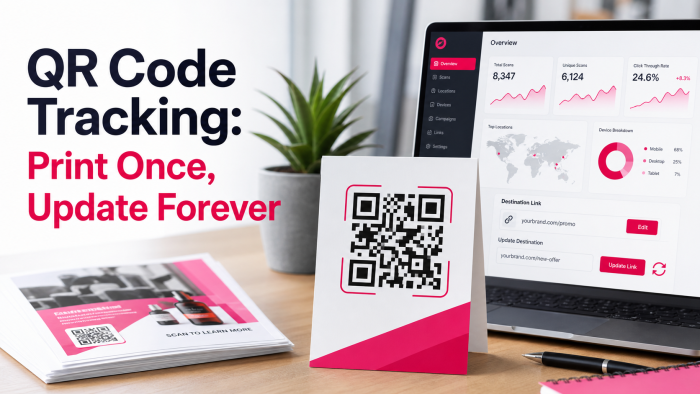
You can change the destination of a QR code without changing the printed image.
To update it:
- Open Tools → QR Code Tracking.
- Select the relevant QR code.
- Edit its destination URL.
- Save your changes.
Future scans will be redirected to the new destination.
You can also change the assigned campaign or UTM tracking values. Because these settings are applied when the code is scanned, changes will take effect without needing to download or print a replacement code.
When a temporary promotion ends, consider changing the destination to a current offer, relevant service page or your homepage. This prevents QR codes on older posters, packaging or business cards from sending visitors to an expired or missing page.
Viewing QR Code Statistics
Each QR code has its own analytics page.
The information available includes:
Total scans
The total number of times the code has been scanned.
This includes repeat scans by the same person or device.
Unique scanners
An estimated number of different people or devices that have scanned the code.
This is an approximation rather than an exact count.
Scans during the last 30 days
A chart showing recent scanning activity.
This can help you identify increases following an event, leaflet delivery, mailshot or advertising campaign.
Top countries
A breakdown of the countries scans have come from during the previous 90 days.
Recent scans
A list of recent scan activity, which can include:
- The date and time
- Approximate location
- Country
- Device or browser information
- Referring page, where available
You can use these figures to compare different printed materials, locations or campaign periods.
For example, you might create separate codes for two event venues or two leaflet designs and compare which one generated more scans.
QR Code Tracking and Website Analytics
When UTM tracking has been configured, visits from your QR code should appear in compatible website analytics systems as labelled campaign traffic.
This can help you see what people did after scanning the code, rather than only knowing that the scan happened.
Depending on your analytics setup, you may be able to measure:
- Pages viewed after scanning
- Enquiries or contact-form submissions
- Purchases
- Booking activity
- Downloads
- Time spent on the website
Analytics and cookie-consent settings may affect the amount of information recorded after a visitor reaches your website.
Privacy
QR Code Tracking is designed to provide useful campaign information without storing visitors’ raw IP addresses.
A visitor’s IP address is converted into a salted, one-way hash. This is used to help estimate unique scanners, but the original IP address cannot be recovered from the stored value.
Location information is approximate. Country information is supplied by the content-delivery network, while city or regional information is estimated from the visitor’s internet connection.
The tool does not use the visitor’s GPS location and does not ask them to provide location access.
Your QR codes and their statistics are only visible to authorised users of your Client Connect account.
Frequently Asked Questions
Do I need to reprint a QR code when its destination changes?
No. Update the destination in Client Connect and future scans will follow the new address.
Can one QR code be used permanently?
Yes. You can continue changing its destination as your website, services or campaigns change.
For clearer reporting, however, it is usually better to create separate QR codes for different printed materials and locations.
Will scans appear in Google Analytics or Matomo?
They can appear as labelled campaign traffic when suitable UTM values have been added to the QR code or its campaign.
Can I separately track several QR codes within one campaign?
Yes. Assign the codes to the same campaign and give each one a different utm_content value.
For example:
utm_content: shop_window
utm_content: leaflet
utm_content: exhibition_banner
Does the total scans figure represent individual people?
Not necessarily. Total scans records every scan, including repeat scans. The unique scanners figure provides an estimate of the number of different scanners.
Can I use a QR code on several different printed items?
You can, but they will all contribute to the same statistics.
Create separate QR codes when you need to compare different posters, leaflets, venues or placements.
What happens if the destination page is removed?
The QR code will still work, but it may send visitors to an unavailable page. Update the destination in Client Connect to point it towards a current page.
Can somebody see my QR code statistics by scanning the code?
No. Scanning the code only redirects the visitor to its destination. The analytics page is restricted to users of your Client Connect account.
Getting Help
If you need help creating a QR code, choosing suitable UTM values or understanding your scan statistics, open a support case through Client Connect and the O’Brien Media team will be happy to help.
 Chris Grant (he/him)